
One active app as the audio source
Select an active Mac app as the source and start recording. CAT shows the level and keeps track of the current session while the source continues playing.
Record audio on Mac
CAT focuses on the audio output of the app you select. Other system sounds and apps do not have to end up in the same recording.
Select an active Mac app as the source and start recording. CAT shows the level and keeps track of the current session while the source continues playing.
An active recording is first stored in the internal CAT working folder. Only after an export is complete is the finished file moved to the destination you selected.
Choose M4A/AAC or MP3 and set the preferred bitrate. CAT delivers completed files with recognizable names to the folder you select.
In practice
CAT combines a focused audio source with exports you can use directly in your own workflow.
View download and installation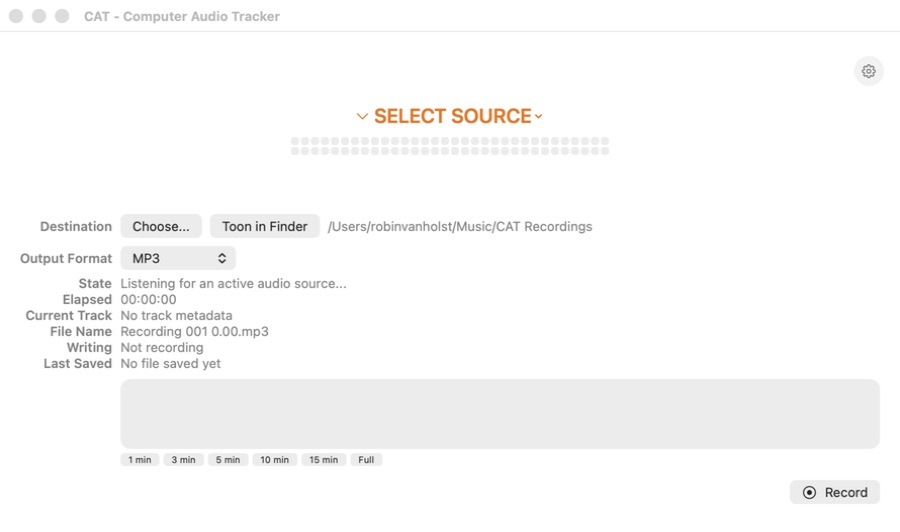
Frequently asked questions
CAT is designed to use one active app as its source. This keeps the recording focused on the audio you want to save.
You select the destination folder. During recording, CAT first uses an internal working folder and then safely delivers completed exports.
CAT for macOS